预览器节点
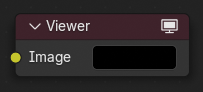
The Viewer node is used to preview image data or value maps anywhere within a compositor node graph. It is a diagnostic tool that allows users to inspect intermediate results without affecting the final output.
You can quickly assign a node to a Viewer by pressing Shift-Ctrl-LMB on the desired node. To switch between multiple Viewer nodes, simply select one with LMB. Only the active Viewer node (with the icon in the header) will be displayed in the backdrop or Image Editor.
输入
- 图像
Outputs the result of this input directly to the viewer result. If this socket is left unconnected, the output will be a black image.
属性
该节点没有属性。
输出
此节点没有输出连接端口。
用法
键盘快捷键
Viewer node provide a quick way to toggle between different viewer nodes while compositing using keyboard shortcuts, improving workflow efficiency when comparing outputs.
Assign Shortcut (Ctrl-1, Ctrl-2, etc.): Select a node and press a shortcut to assign it. If no Viewer node is attached, one is created and activated. The number will be shown in the upper right part of the node to identify which shortcut is assigned.
Activate Node (1, 2, etc.): Press the assigned number key to activate the node's Viewer output.
Note
Only number keys (1-9) are supported.
使用 图像 编辑器
预览器节点可以将图像结果在图像编辑器中进行显示。在标题栏上的关联 图像 数据块菜单选择 预览器节点 选项即可加载图像。图像编辑器将显示来自当前选中的预览器节点的图像。
要保存当前预览器节点的图像,使用 或 Alt-S 来将内容保存为图像文件。
图像编辑器在标题栏也有额外的三种查看图像的方式:不带Alpha通道或包含Alpha通道的图像,单独查看Alpha或Z通道。在图像上单击鼠标左键,显示允许用户查看当前点击位置的采样信息(坐标位置,颜色值等信息)。
See also
For overlays specific to the Viewer node (such as text info and render guides), see Guides Overlays.